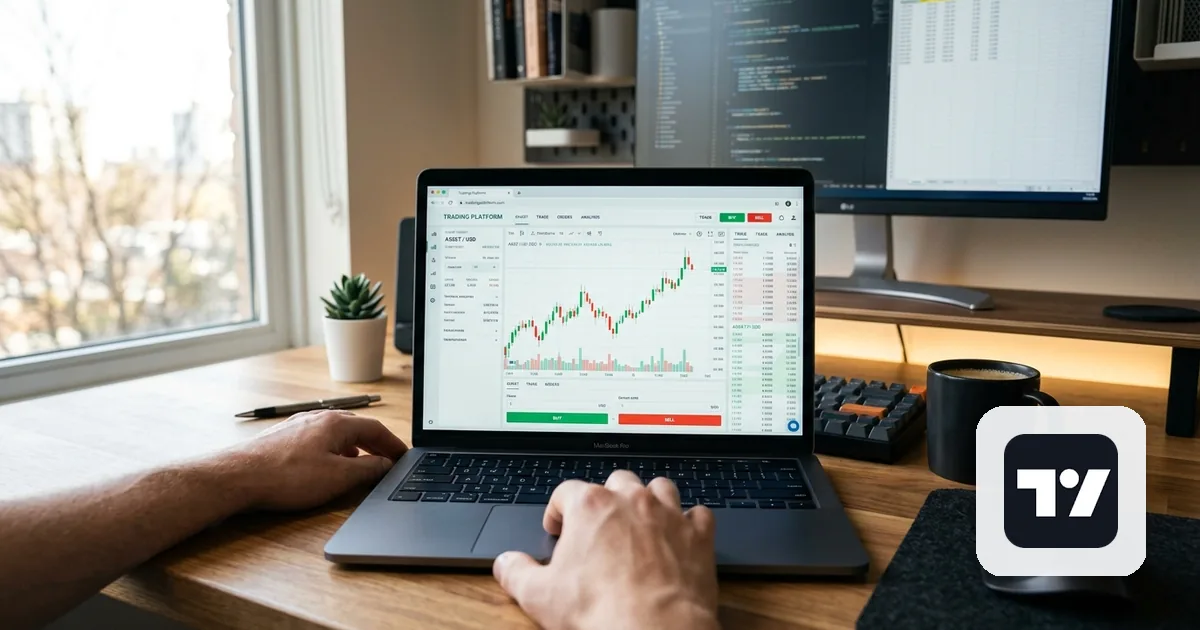
TradingView is best known for its charts, but it can also place live orders directly - through a connected Tradovate account. That connection is what makes TradingView-placed trades copyable with Qloner.
How TradingView executes trades
TradingView's live trading connects to Tradovate as the execution broker - you link your Tradovate account inside TradingView, and orders placed from TradingView's chart or order panel route straight to that Tradovate account. TradingView isn't a broker itself for futures; Tradovate is what actually holds the account and executes the order.
What this means for copy trading
Since TradingView orders land on your Tradovate account exactly like any other Tradovate order, Qloner copies them the same way - connect Qloner to that Tradovate account (see the Tradovate spoke in this pillar for the OAuth setup) and every trade you place from TradingView's interface mirrors to your followers, with no separate TradingView-specific setup.
Paper trading vs. live
TradingView also offers a paper trading mode that doesn't touch a real account at all - those trades never reach Tradovate and never copy anywhere, since there's no real order for Qloner to see. Make sure you're trading live, against your actual connected Tradovate account, before expecting a trade to copy.
Using TradingView as a follower
Copying trades onto a TradingView-connected Tradovate account works the same as any Tradovate follower: Qloner places the copied order directly on the Tradovate account, and it appears in TradingView like any other fill on that account - you're watching it happen, not placing it.
TradingView vs. Trading Directly on Tradovate
| From TradingView | From Tradovate Directly | |
|---|---|---|
| Where the order lands | Your connected Tradovate account | The same Tradovate account |
| What Qloner sees | An order on your Tradovate account - identical either way | An order on your Tradovate account |
| Setup needed in Qloner | None beyond the Tradovate connection itself | The Tradovate OAuth connection |
Frequently Asked Questions
No - Qloner connects to the Tradovate account that TradingView executes through. There's no separate TradingView integration to configure.
More posts